---
updatedAt: 2025-06-16T23:14:25.000Z
agentTools:
projectIndex: https://developers.directscale.com/llms.txt
---
# Razor Syntax Integration
Razor is a view engine supported in ASP.NET Model View Controller that allows you to mix HTML with server-side code using C#. DirectScale has integrated this syntax into the **Custom Content Editor** to [create custom pages](https://developers.directscale.com/docs/custom-pages) and [widgets](https://developers.directscale.com/docs/custom-widgets) for the **Web Office** and **eCommerce Shop**.
# Methods
You can use the following methods:
* `User` - Inject user data
* `GetSsoURL` - Allow for SSO linking
* `String` - You can add a translatable string
***
***
# How to Use
In a **Custom Content Editor**, such as [creating custom pages in **Web Office**](https://developers.directscale.com/docs/custom-pages), precede Razor syntax with an `@` sign.
***
***
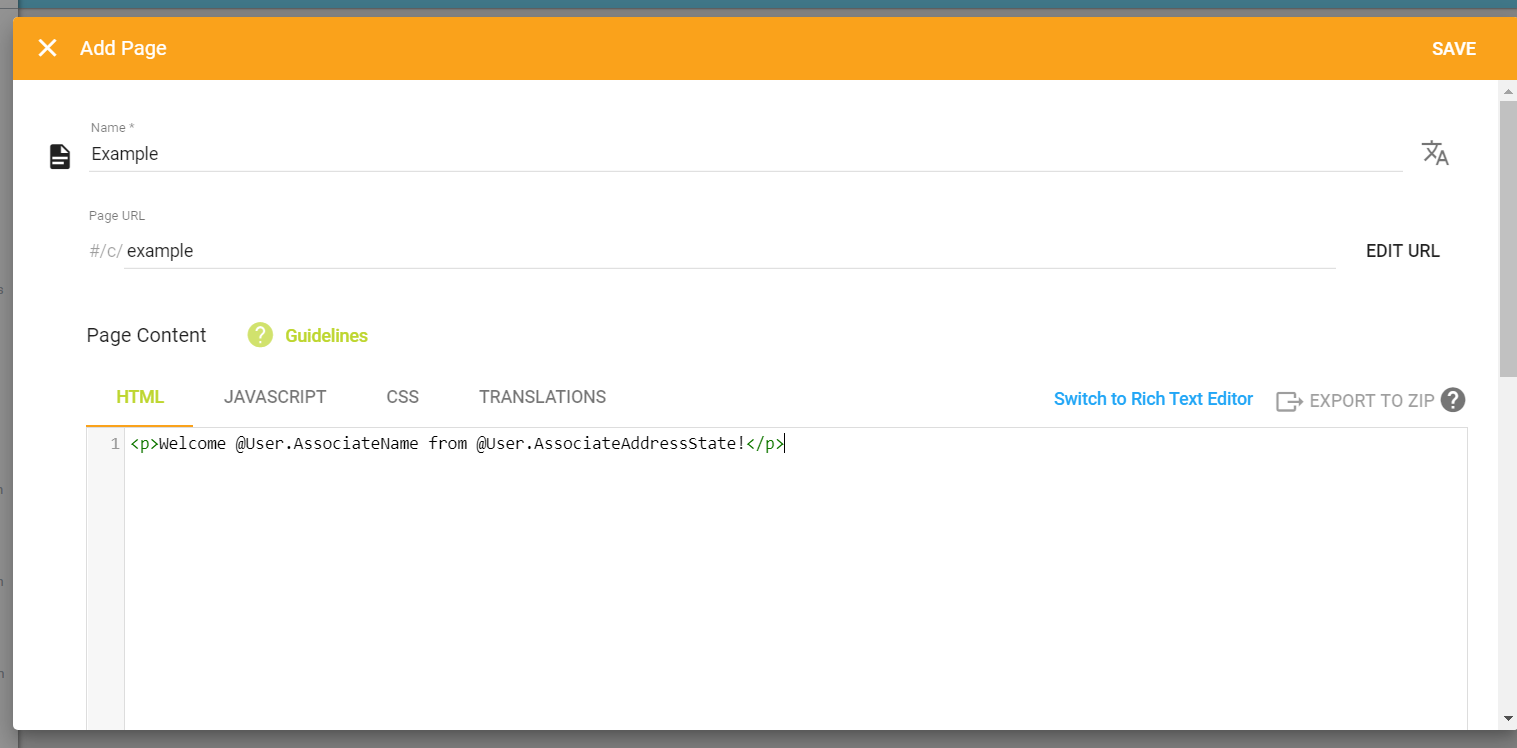
In **Web Office Admin**, navigate to: **Code Customization** > **Custom Office Pages** > Click **+ ADD PAGE**.
***
## Type-Ahead
Once you type your `@` sign, the type-ahead feature will display the methods you can select:
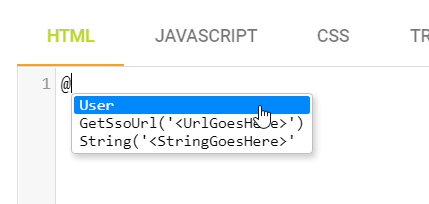
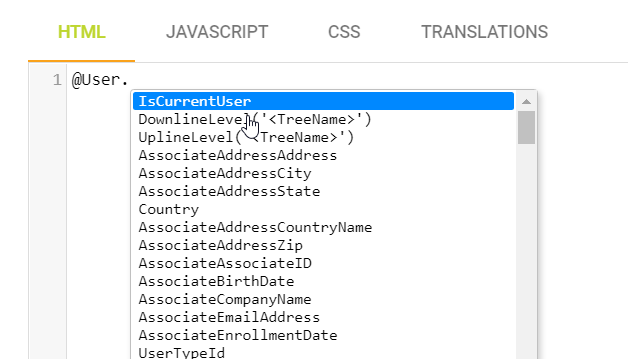
If you select the **User** method, a second menu will display a complete list of [data point categories](https://help.directscale.com/hc/en-us/articles/360050456073) to select.
***
***
# User Method
Inject user data into the page. With this method, you can access any data you have on a user.
```html
// Output: Welcome Sam Space from UT!
Welcome @User.AssociateName from @User.AssociateAddressState!
```
***
## Data Point Categories
> 📘See a complete list
>
> [Data Point Categories](https://directscaledev.readme.io/docs/get-associate-data-points-gadp)
***
## Logic-Determined Markup
All valid Razor markup will compile in an HTML widget. This includes conditionals and loops. To display a line of markup depending on the user’s rank, you might use a line like this:
For example:
```html
@if(User.Rank == "Gold") { You are a distributor. Your next rank isn't far away!
}
```
```html
//
// Output: IsCurrentUser returns true if the
// logged-in user is viewing their own data.
//
@if (User.IsCurrentUser) { Some Html
}
```
```html
//
// Output: DownlineLevel(treeName) for the logged-in user’s specified tree
// (Enrollment, Placement, or Matrix) returns the downline level of the
// user whose data is being viewed. If the user is not in the
// logged-in user’s tree then it returns null.
//
@if (User.DownlineLevel("Placement")
```
***
***
# GetSsoURL Method
You can use DirectScale’s standard outbound [**SSO**](https://directscaledev.readme.io/docs/inbound-and-outbound-single-sign-on-sso).
To convert a URL to redirect through the DirectScale standard outbound SSO handler, use the Razor method’s `GetSsoUrl` method. This method accepts the redirect URL as an argument.
```html
Click to go to mysite
```
A URL will generate to DirectScale’s redirect handler, which will replace `{DirectScale:Token}` with a temporary SSO token and redirect to the given URL.
***
***
# String Method
You can add a translatable string by using the **String** method. This method accepts the String as an argument.
```html
@String("Welcome!")
```
This string will then be available for translation.
***
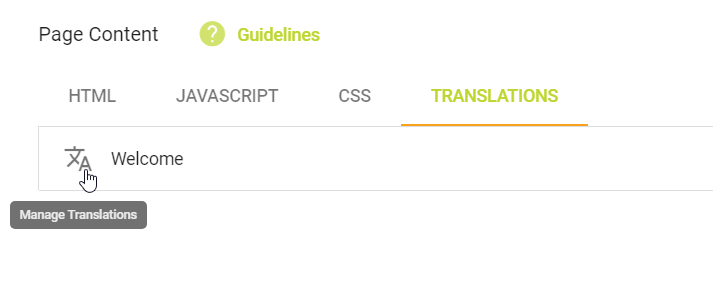
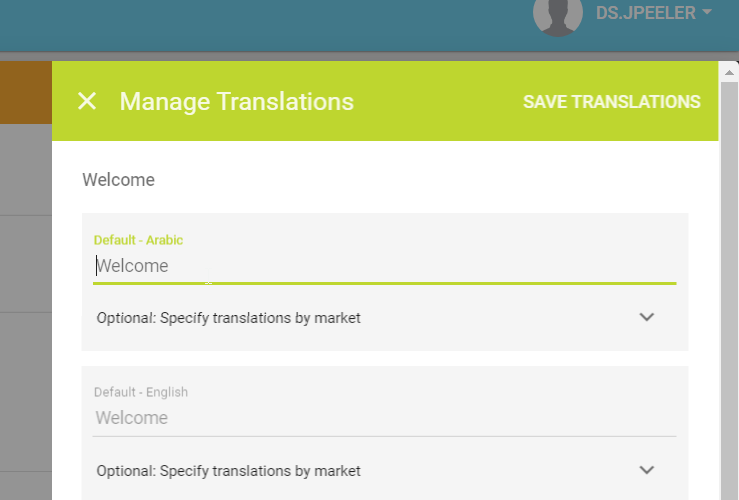
1. Click the **TRANSLATIONS** tab to add translations.
2. Click the  symbol to open the **Manage Translations** module.
> 📘Read more in the Help Center
>
> [Managing Translations in Web Office Admin](https://help.directscale.com/hc/en-us/articles/360043942513)