---
updatedAt: 2025-06-16T23:15:01.000Z
agentTools:
projectIndex: https://developers.directscale.com/llms.txt
---
# Customizing the Product Description and Specifications
The product's Description and Specifications are pulled in from the **Corporate Admin** Inventory setup.
> 📘Read more
>
> You can learn more about how and where to enter this information in the Help Center: [Entering General Inventory Information](https://help.directscale.com/hc/en-us/articles/360051684733-Entering-General-Inventory-Information).
In the **eCommerce Shop**, the Description and Specifications appear on the **Product Detail** page. Unfortunately, you can't customize the design by merely editing the Product Detail [Page Template](https://developers.directscale.com/docs/page-templates). However, there is a workaround that can allow you to accomplish what you need.
***
***
# TinyMCE Text Editor
In **Corporate Admin** > **Inventory** > **Item Detail**, under the **General** tab, the information for the Description and Specifications are entered in TinyMCE Text Editors.
> 📘Read more
>
> The TinyMCE Editor features many great tools to add your content. For more information in the Help Center, see [TinyMCE Text Editor](https://help.directscale.com/hc/en-us/articles/360043805093-TinyMCE-Text-Editor).
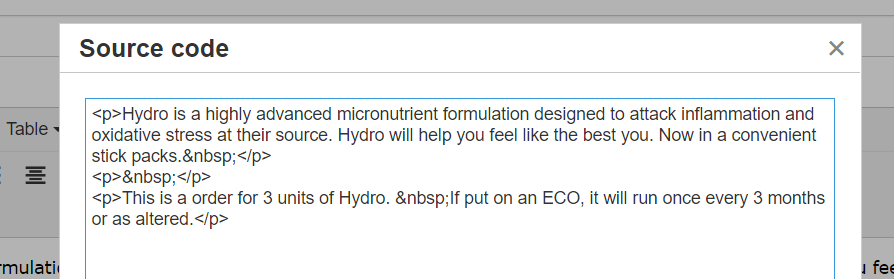
More importantly, the TinyMCE editor has an option to edit the HTML source (**Tools** > **Source Code**). You can add custom CSS classes and IDs to the HTML.
***
***
# Steps to Customize
So, to fully customize the Description and Specifications of the **Product Detail** page.
1. Add your custom CSS styles.
1. Either[ Insert custom CSS stylesheet](https://developers.directscale.com/docs/insert-custom-css-stylesheet) by using a JavaScript Insertion.
2. Or enable the Product Detail [Page Template](https://developers.directscale.com/docs/page-templates) and add your custom CSS under the **CSS** tab.
2. Edit the **Source Code** in the TinyMCE Editors for each Inventory Items Description or Specifications and add custom CSS styles, classes, and IDs.